

🌐
How to Join a Microsoft Teams Meeting in Your Browser
A simple, step‑by‑step guide for Cerchio Travel clients — no downloads required.
💡
Tip: Teams works best in Chrome, Edge, or Safari.
🧰 What You Need
- A meeting link (from your email or calendar)
- A supported browser: Chrome, Edge, or Safari
- Phone, tablet, laptop, or desktop device
- A microphone (and camera if you want video)
🔗 Join Using the Meeting Link
- Open your meeting invitation.
Look in your email, calendar, or text message for the Teams meeting details. - Click the meeting link.
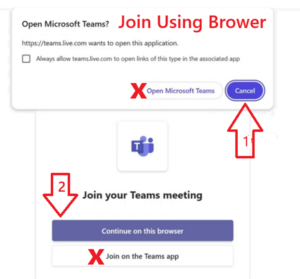
It usually says, “Join Microsoft Teams Meeting.” - Select “Continue on this browser.”
💥Choose the option to join in your web browser — no app needed. - Allow microphone and camera access.
Your browser will ask for permission — click Allow. - Enter your name.
If you don’t have a Teams account, simply type your name. - Check your settings.
Turn your camera on/off, mute/unmute your microphone, and select the correct audio device. - Click “Join now.”
You may enter the meeting immediately or wait in the lobby.
🆔 Join Using a Meeting ID
- Open your browser and go to https://teams.microsoft.com.
- Click “Join with an ID.”.
- Enter the Meeting ID and Passcode.
- Allow mic/camera access, enter your name, and click Join now.
🛠️ Troubleshooting Tips
- Can’t find “Continue on this browser”?
Look for a small link that says “Join on the web instead.” - No one can hear you?
Make sure your microphone isn’t muted and select the correct audio device. - The link won’t open?
Copy and paste it into Chrome or Edge.
📞
Need help?
Cerchio Travel is happy to walk you through joining your meeting — just reach out.
Cerchio Travel is happy to walk you through joining your meeting — just reach out.